How to Bulk Onboarding Agoda on Multiproperty Portal
Modified on: 2026-10-16 15:42
As part of our design update, the screenshots are currently being revised.
Overview
Agoda Multiproperty Onboarding enables you to activate multiple properties on the Agoda channel and map their room rates in bulk within the Multiproperty portal.
You can download a prefilled template, enter the required Agoda information, and upload it to activate selected properties. Once the properties are connected, you can export and import room-rate mappings in bulk.
Instructions
Step 1: Select Properties
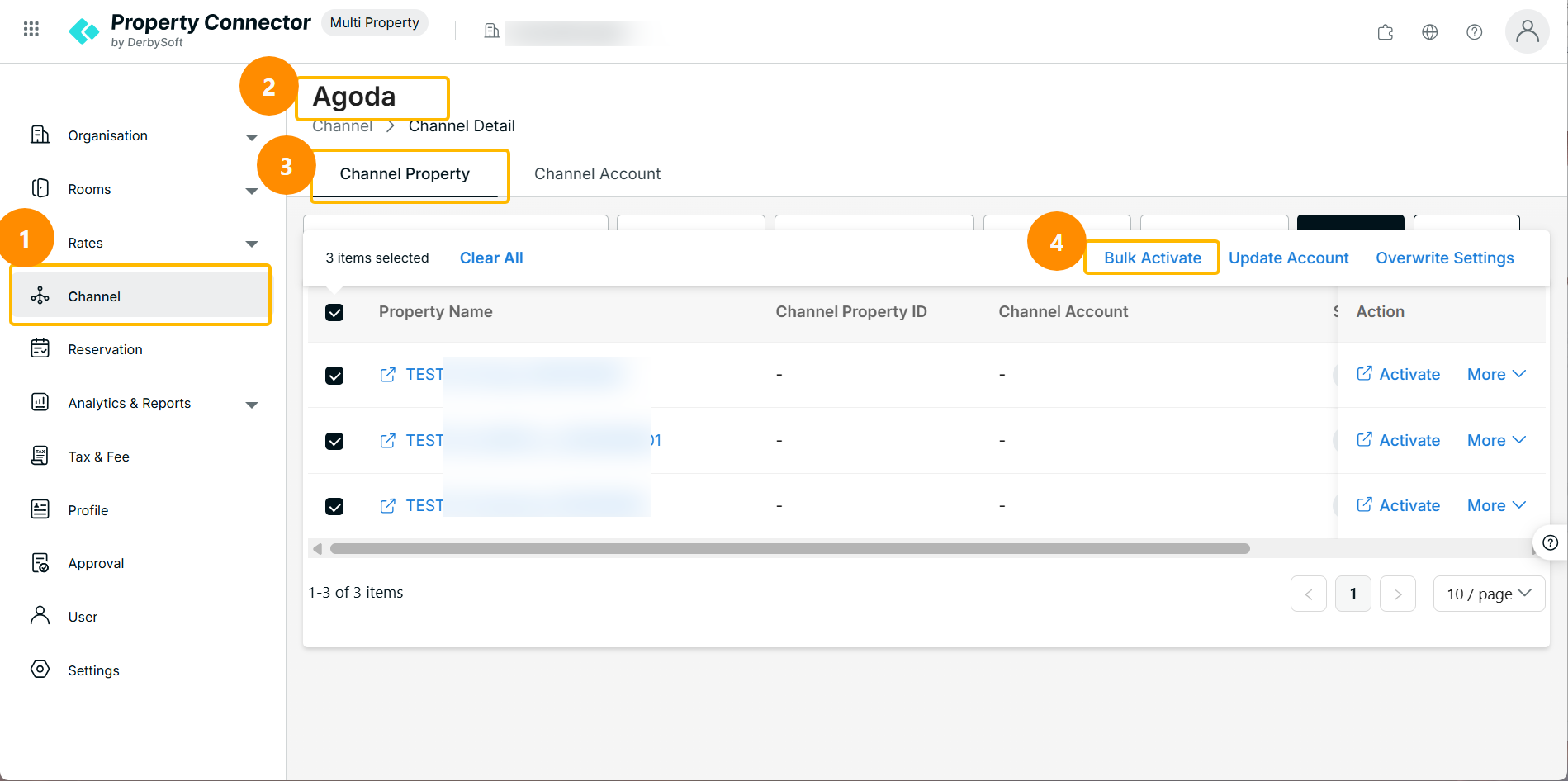
- Navigate to Multiproperty > Channel > Agoda > Channel Property.
- Filter the property list by status: Not Connected.
- Select the properties you want to activate.
Step 2: Download and Complete the Activation Template
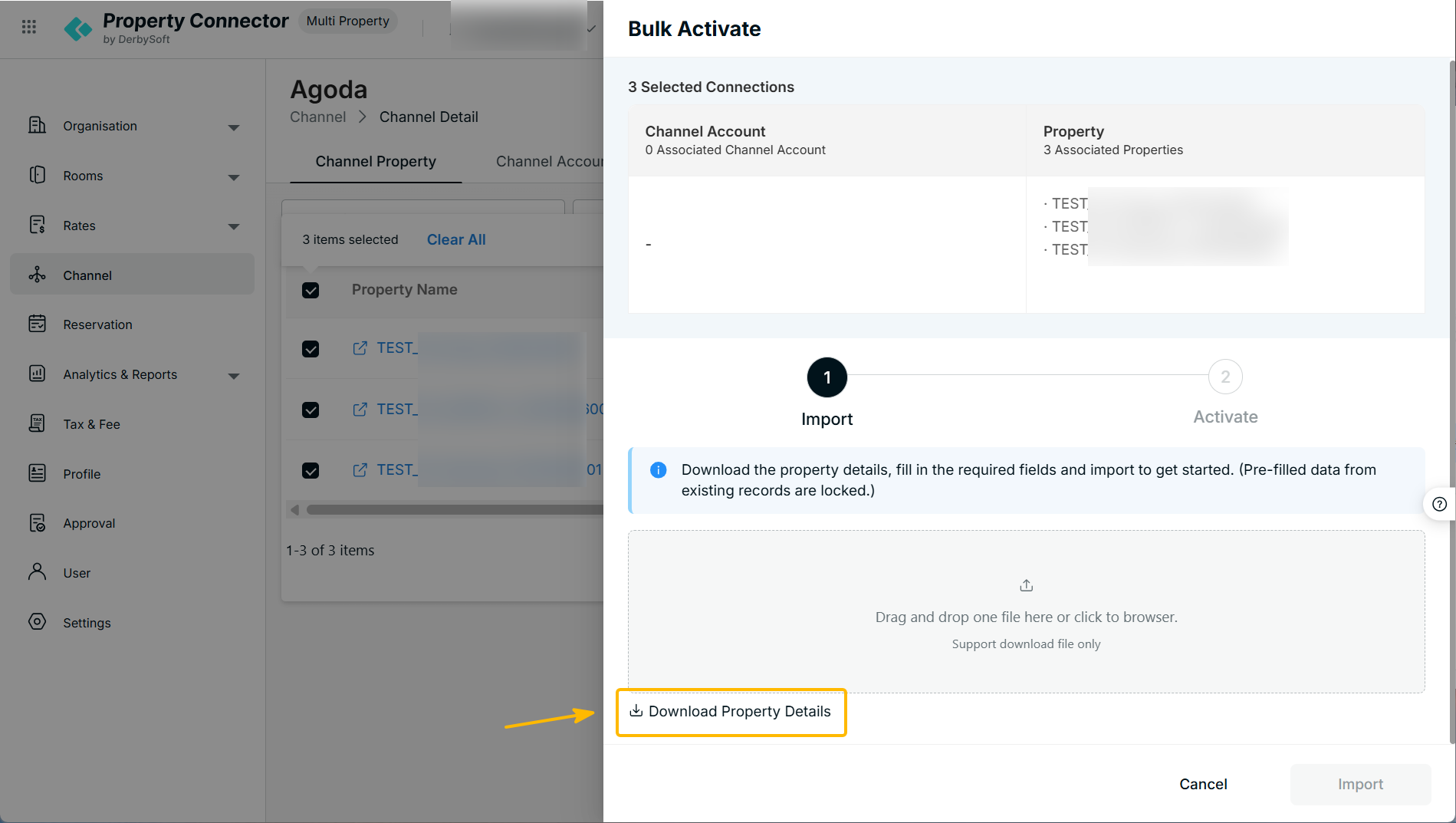
- Click Bulk Activate in the bulk action bar to open the activation panel.
- Download the property details. The selected property details are automatically included in the file.
- Enter the required Agoda information for each property.
Step 3: Upload and Review the Template
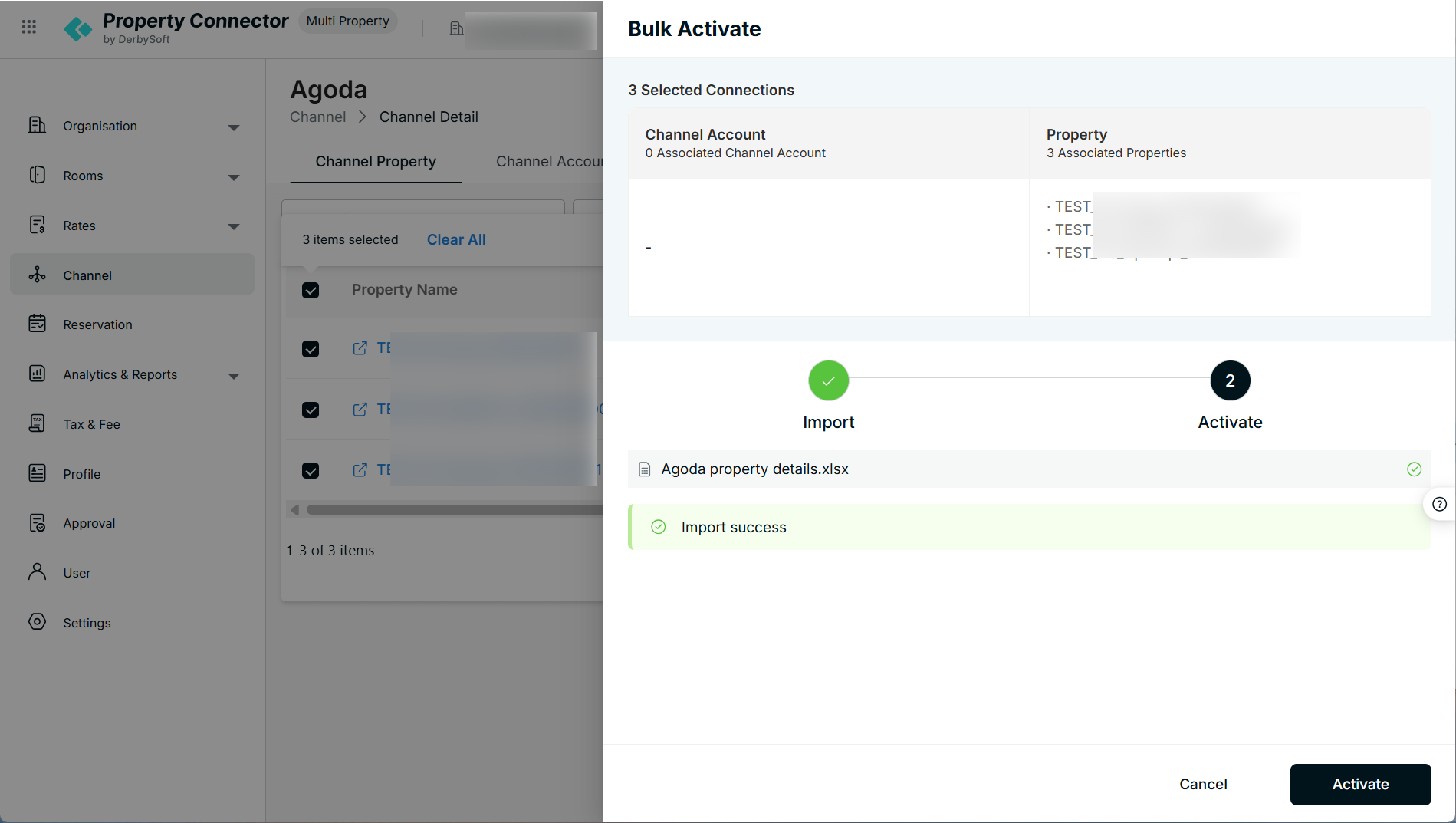
- Upload the completed activation template.
- Review the import results and correct any rows that contain errors.
- Upload the corrected file again if necessary.
Step 4: Submit the Activation Request
- Once the file has been processed successfully, click Activate.
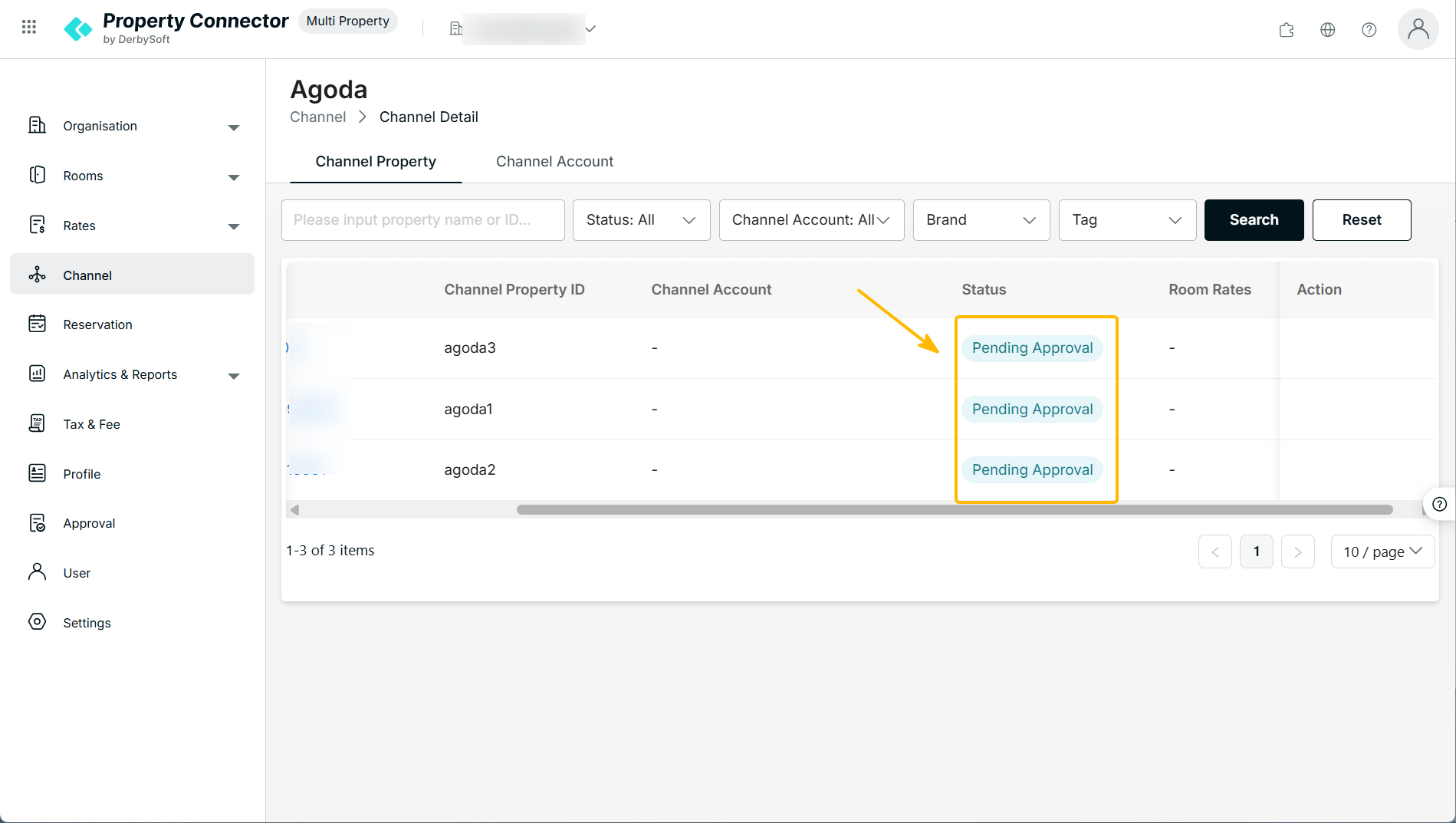
- The selected properties are submitted for activation, and their status changes to Pending Approval.
- After approval, the property status changes to Connected.
Step 5: Export the Room-Rate Mapping Template
- Filter the property list by status: Connected.
- Select the properties for which you want to configure room-rate mappings.
- Click Mapping Room Rates.
- Export room rates
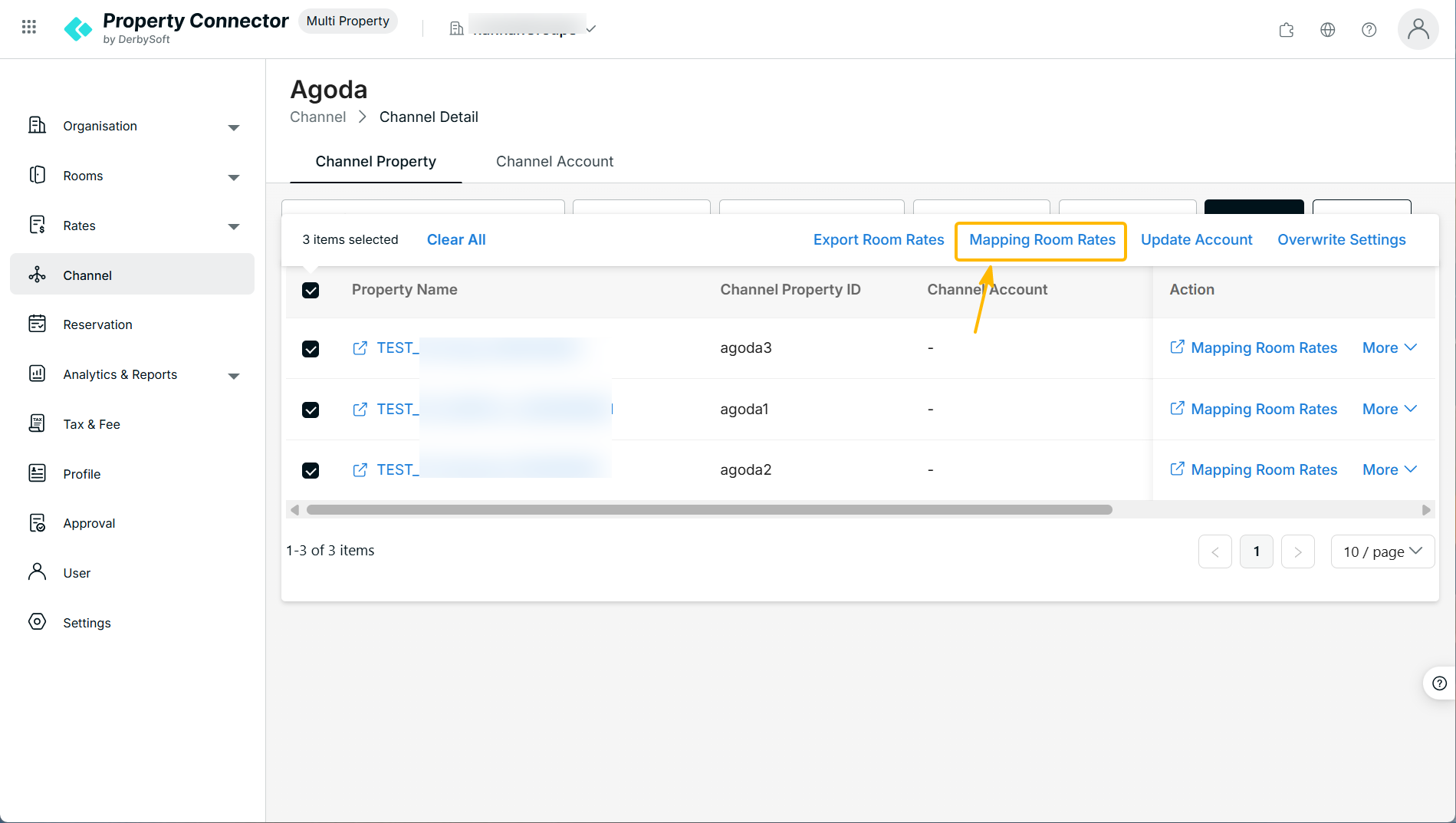
Note: The template is generated asynchronously. A download link will be sent to your email address when the file is ready.
Step 6: Complete and Import Room-Rate Mappings
- Download the mapping template from the link in the email.
- Complete the Agoda room and rate-plan mappings in the spreadsheet.
- Return to the Agoda onboarding page and import the completed file.
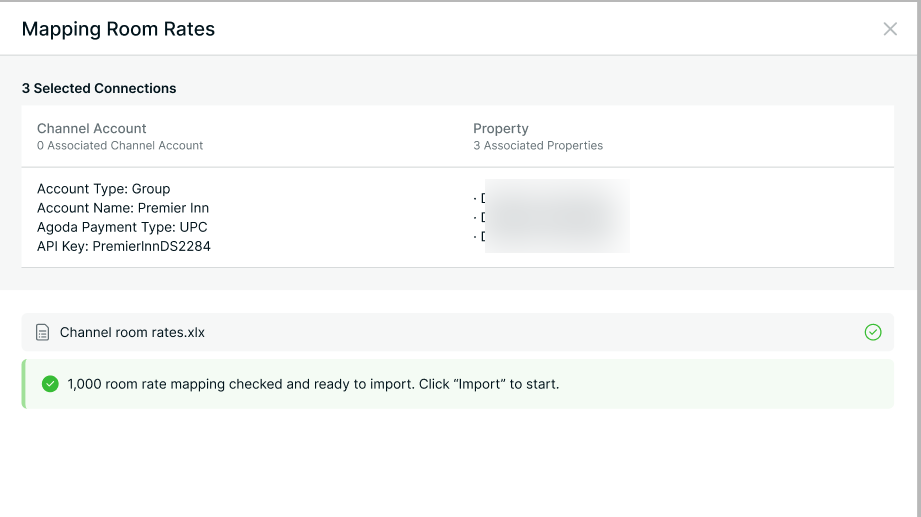
The import updates mappings incrementally. Existing mappings are overwritten only when corresponding mappings are included in the imported file.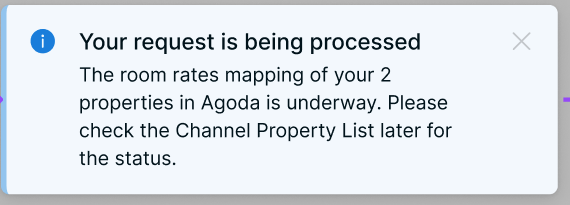
Did you find it helpful? Yes No
Send feedbackSorry we couldn't be helpful. Help us improve this article with your feedback.